> ## Documentation Index
> Fetch the complete documentation index at: https://forgetwork.mintlify.site/llms.txt
> Use this file to discover all available pages before exploring further.
# ⏰ Timer
> The most important feature
 ## What is this?
Every task gets a timer, because a task without a time box has a way
of eating the whole day.
## How does it work?
There are two ways to set a timer:
### 1. While adding the task
End the task name with a number in [Quick Add](/ios/quick-add), like
"Email Sam 15", and the timer is set in minutes.
### 2. From Task Details
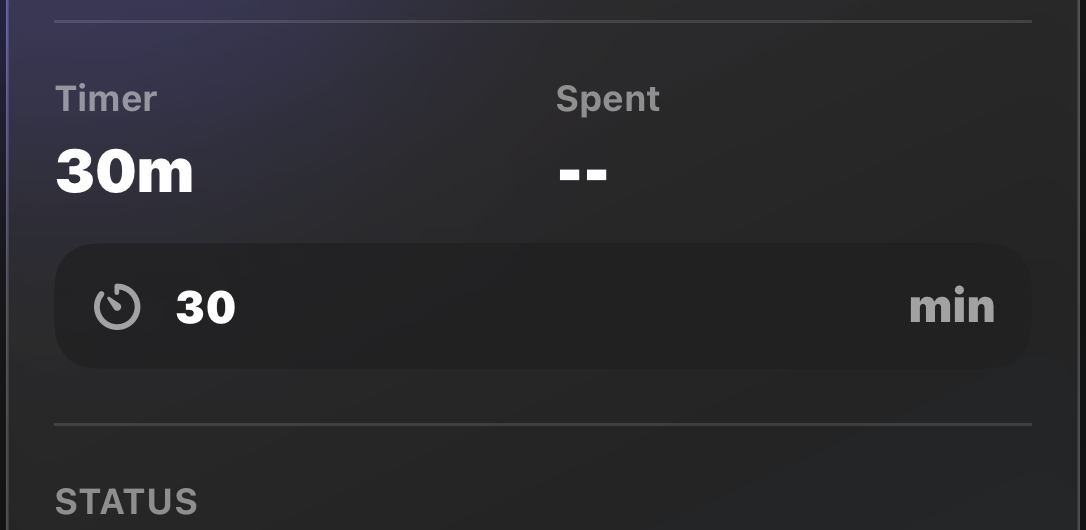
Open a task's [details](/ios/task-details) and edit the **Timer**
minutes directly.
## During focus
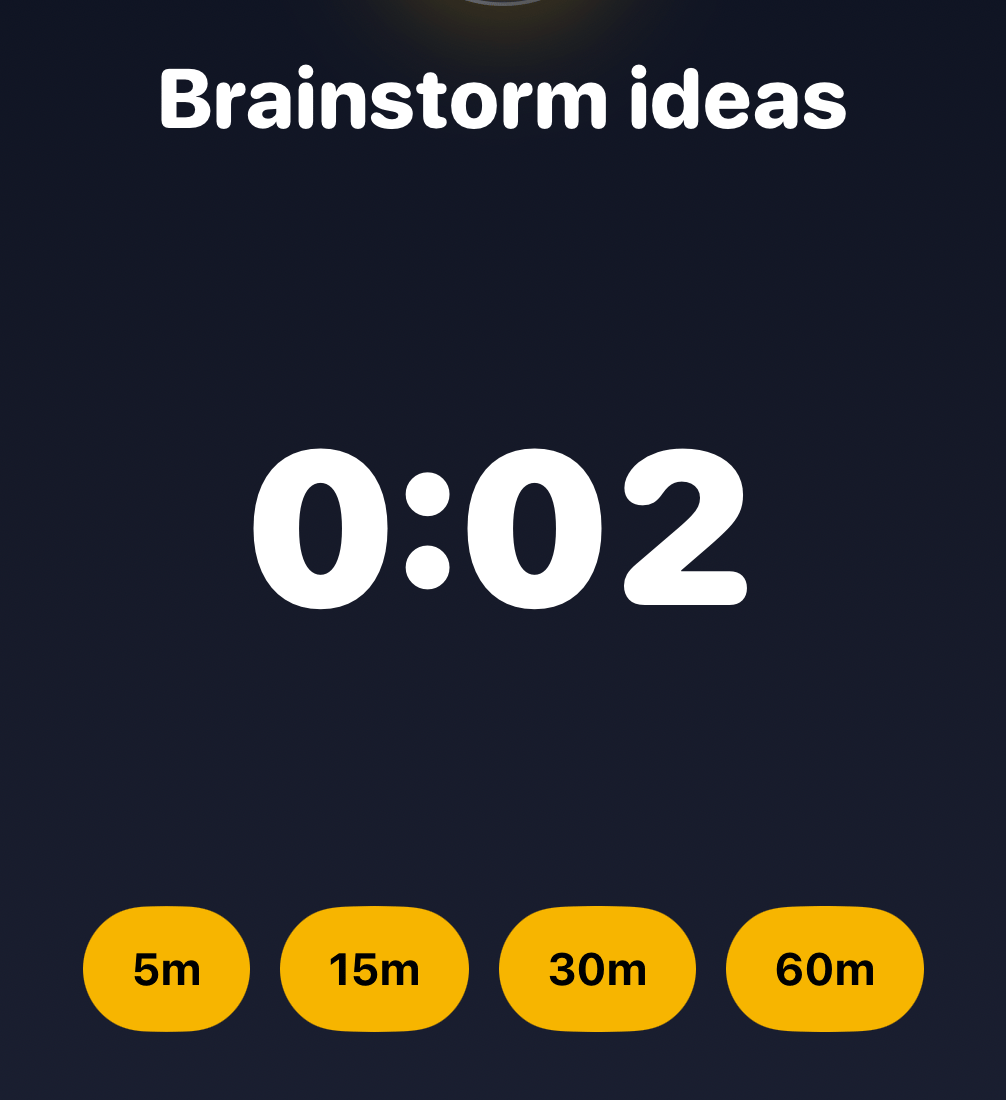
If the task you're [focusing](/ios/focus-time) on has no timer, quick
picks let you grab 5, 15, 30, or 60 minutes on the spot.
## What is this?
Every task gets a timer, because a task without a time box has a way
of eating the whole day.
## How does it work?
There are two ways to set a timer:
### 1. While adding the task
End the task name with a number in [Quick Add](/ios/quick-add), like
"Email Sam 15", and the timer is set in minutes.
### 2. From Task Details
Open a task's [details](/ios/task-details) and edit the **Timer**
minutes directly.
## During focus
If the task you're [focusing](/ios/focus-time) on has no timer, quick
picks let you grab 5, 15, 30, or 60 minutes on the spot.
 When you hit your target, you can extend with +5, +15, +30, or a
custom amount, or let the **Overtime** setting keep counting up past
zero.
We recommend keeping timers at 30 minutes or less. Long tasks work
better split into [subtasks](/ios/subtasks) with timers of their
own.
This documentation is built and hosted on [Mintlify](https://mintlify.com), a developer documentation platform.
When you hit your target, you can extend with +5, +15, +30, or a
custom amount, or let the **Overtime** setting keep counting up past
zero.
We recommend keeping timers at 30 minutes or less. Long tasks work
better split into [subtasks](/ios/subtasks) with timers of their
own.
This documentation is built and hosted on [Mintlify](https://mintlify.com), a developer documentation platform.