

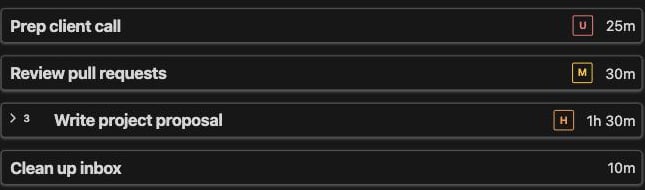
What is this?
Not every task deserves the same energy. Priority lets you flag each task as Low, Medium, High, or Urgent, or leave it Neutral, so the important stuff stands out at a glance.How does it work?
Open a task’s Details drawer and pick a priority.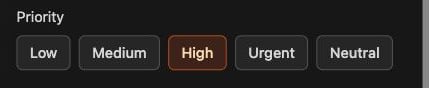
Hiding the chips
Prefer a cleaner list? Click the menu next to the Tasks title and choose Hide All Priority Icons. You can bring them back the same way.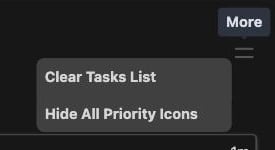
You can also sort and filter your list by
priority.